Skip to content
needtricks_logo

Need Tricks

Technology Tips and Tricks

  • Home
  • Internet
    • Ad Networks
      • Internet Browser
        • Firefox
        • Opera
        • Safari
      • Internet Explorer
    • Content
      • Chrome
    • Analytics
  • Computer
    • Desktop
    • Laptop
  • General
    • Household
  • Social Networks
    • Facebook
    • Google Plus
    • Twitter
    • Youtube
  • Operating System
    • Apple
    • Android
    • Windows
    • Bada
    • Blackberry
  • Technology
  • Home
  • Magic Tricks
  • How to Use the Same WhatsApp Number on Two Smartphones

How to Use the Same WhatsApp Number on Two Smartphones

Need Tricks
How to Use the Same WhatsApp Number on Two Smartphones

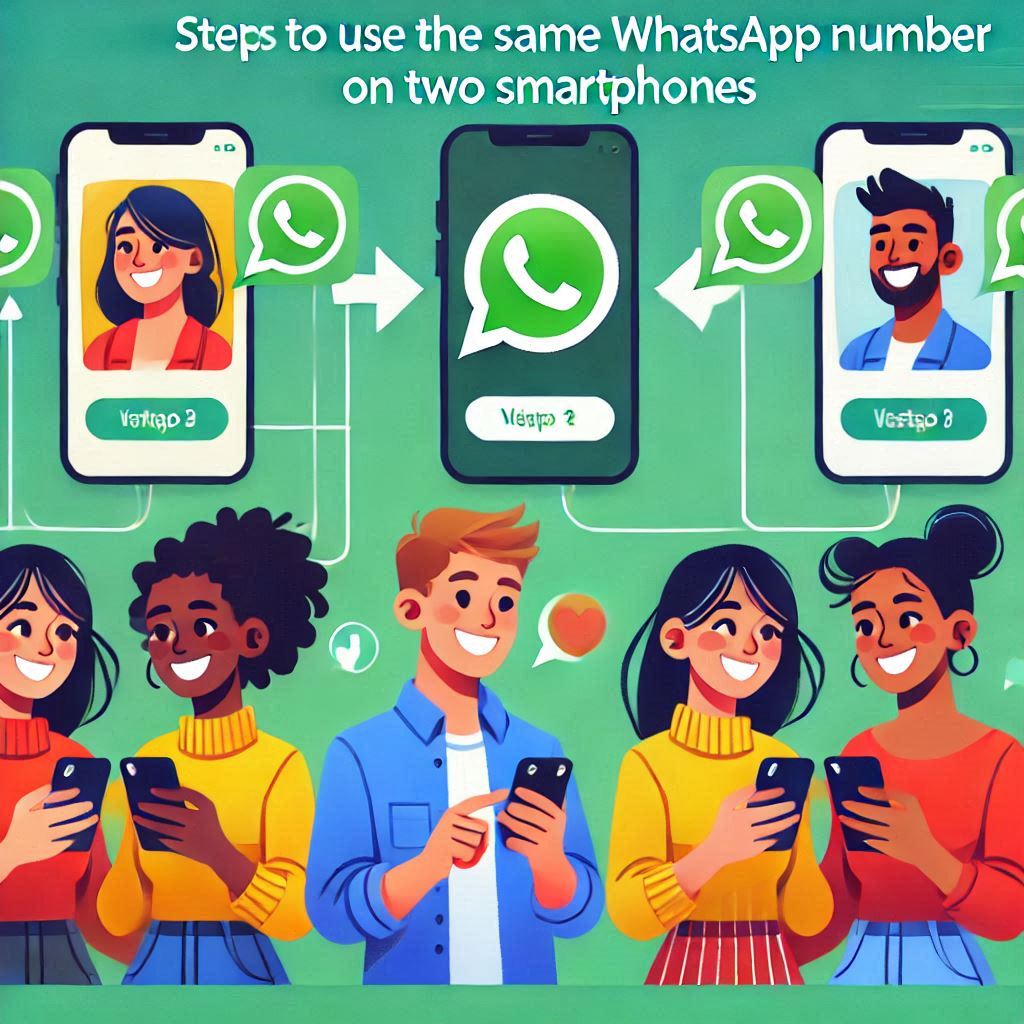
How to Use the Same WhatsApp Number on Two Smartphones. WhatsApp is one of the most popular messaging apps worldwide. But what if you want to use the same WhatsApp number on two smartphones? Earlier, this wasn’t possible. Now, WhatsApp has introduced a feature allowing multi-device support. This guide explains how you can set it up and make the most out of this feature.

How to Use the Same WhatsApp Number on Two Smartphones

Why Use WhatsApp on Two Devices?

Using WhatsApp on two smartphones can be helpful for:

  1. Work-Life Balance: Use one phone for work and another for personal use.
  2. Accessibility: Stay connected, even if one device is not available.
  3. Convenience: No need to switch devices frequently for WhatsApp messages.

Key Features of WhatsApp’s Multi-Device Support

  • Sync Across Devices: Messages sync seamlessly between the two smartphones.
  • No Primary Phone Needed: After setup, the primary device doesn’t need to stay connected.
  • Independent Use: Both phones can independently access chats, calls, and media.

How to Use WhatsApp on Two Smartphones: Step-by-Step Guide

Follow these simple steps to set up the same WhatsApp number on two smartphones:


Step 1: Ensure You Have the Latest WhatsApp Version

  • Go to the App Store (iPhone) or Google Play Store (Android).
  • Check if WhatsApp is updated to the latest version.
  • Update the app if needed.

Step 2: Install WhatsApp on the Second Smartphone

  • Download and install WhatsApp on the second device.
  • Do not set it up with a new number.

Step 3: Open WhatsApp Web on the Second Phone

  • Open a web browser (Chrome, Safari, etc.) on the second phone.
  • Type web.whatsapp.com in the browser’s address bar.
  • Switch to desktop mode by tapping the browser settings and selecting “Desktop Site.”

Step 4: Scan the QR Code from the Primary Phone

  • On the primary phone, open WhatsApp.
  • Go to Settings > Linked Devices.
  • Tap Link a Device and scan the QR code displayed on the second phone’s browser.

Step 5: Access WhatsApp on the Second Phone

  • After scanning the QR code, the second phone will display all your chats.
  • You can now use WhatsApp simultaneously on both devices.

Common Issues and How to Fix Them

Problem 1: QR Code Not Scanning

  • Ensure a stable internet connection on both devices.
  • Clean the camera lens of the primary phone.
  • Refresh the QR code on the second phone’s browser.

Problem 2: Chats Not Syncing

  • Check if WhatsApp is updated on both phones.
  • Restart the devices and retry the linking process.

Problem 3: Logout from the Second Device

  • Re-scan the QR code if logged out.
  • Avoid clearing browser cookies on the second phone.

Benefits of Using WhatsApp on Two Smartphones

1. Increased Productivity

  • Manage personal and professional communications on separate devices.

2. Better Accessibility

  • Access WhatsApp messages and calls from any device.

3. No Dependence on One Device

  • Continue chats even if your primary phone is out of battery or lost.

Limitations to Keep in Mind

  • Limited Devices: You can link up to four devices, but only one additional phone.
  • Media Download: Media files may take time to sync on the second phone.
  • Battery Consumption: Running WhatsApp on multiple devices may drain battery faster.

Pro Tips for a Seamless Experience

1. Use Cloud Backup

  • Regularly back up your chats to Google Drive or iCloud for data safety.

2. Maintain Security

  • Lock WhatsApp with a password or biometric authentication on both devices.

3. Avoid Public Networks

  • Use secure networks to avoid unauthorized access to your WhatsApp account.

Frequently Asked Questions

1. Can I use WhatsApp on more than two smartphones?

No, currently, WhatsApp allows linking only one additional phone with the same number.

2. Will both devices receive notifications?

Yes, you’ll receive notifications on both devices for new messages and calls.

3. Can I use WhatsApp Business with this feature?

Yes, WhatsApp Business also supports the multi-device feature.

4. Is my data safe while using WhatsApp on two devices?

Yes, WhatsApp uses end-to-end encryption, ensuring your chats and calls are secure.


Conclusion

Using WhatsApp on two smartphones is now possible and incredibly convenient. Whether you want to manage work and personal life or need easy access across devices, this feature is a game-changer. Follow the steps above to set it up and enjoy seamless communication.

Stay updated with the latest WhatsApp features, and enhance your digital connectivity effortlessly.


Share this:

  • Share on WhatsApp (Opens in new window) WhatsApp
  • Share on Facebook (Opens in new window) Facebook
  • Share on Tumblr (Opens in new window) Tumblr
  • Print (Opens in new window) Print
  • Share on LinkedIn (Opens in new window) LinkedIn
  • Share on Reddit (Opens in new window) Reddit
  • Email a link to a friend (Opens in new window) Email
  • Share on X (Opens in new window) X
  • Share on Pinterest (Opens in new window) Pinterest

Like this:

Like Loading…

Related

Magic Tricks
Tagged Can I use my same number in a different phone on WhatsApp?, Can I use WhatsApp on two phones with the same number?, How can I use two WhatsApp in one phone with same number?, How to link WhatsApp to another phone without QR code?, How to use one WhatsApp account on two phones without scanning, How to use one WhatsApp account on two phones without WhatsApp Web, How to use the same whatsapp number on two smartphones android, How to use the same whatsapp number on two smartphones iPhone, How to use WhatsApp on two phones with same number, How to use WhatsApp on two phones with same number Android, How to use WhatsApp on two phones with same number iPhone, WhatsApp Web

Post navigation

⟵ 15 Amazing Facts About the Spinal Cord Your Body Communication Hub
How to Add Volume to Hair for Men Step-by-Step Guide ⟶

Related Posts

hSmart Ways to Use a Power Bank Beyond Charging Phones
Smart Ways to Use a Power Bank Beyond Charging Phones

Smart Ways to Use a Power Bank Beyond Charging Phones A power bank is a must-have gadget for keeping your…

Share this:

  • Share on WhatsApp (Opens in new window) WhatsApp
  • Share on Facebook (Opens in new window) Facebook
  • Share on Tumblr (Opens in new window) Tumblr
  • Print (Opens in new window) Print
  • Share on LinkedIn (Opens in new window) LinkedIn
  • Share on Reddit (Opens in new window) Reddit
  • Email a link to a friend (Opens in new window) Email
  • Share on X (Opens in new window) X
  • Share on Pinterest (Opens in new window) Pinterest

Like this:

Like Loading…
Ice Freezing Extraordinary: The Magic Ice Production Trick
Ice Freezing Extraordinary The Magic Ice Production Trick

Ice Freezing Extraordinary The Magic Ice Production Trick. The Ice Freezing Extraordinary trick is a classic magic illusion that creates…

Share this:

  • Share on WhatsApp (Opens in new window) WhatsApp
  • Share on Facebook (Opens in new window) Facebook
  • Share on Tumblr (Opens in new window) Tumblr
  • Print (Opens in new window) Print
  • Share on LinkedIn (Opens in new window) LinkedIn
  • Share on Reddit (Opens in new window) Reddit
  • Email a link to a friend (Opens in new window) Email
  • Share on X (Opens in new window) X
  • Share on Pinterest (Opens in new window) Pinterest

Like this:

Like Loading…
Master Instagram Sleep Mode A Simple Trick to Minimize Distractions

Master Instagram Sleep Mode A Simple Trick to Minimize Distractions. Instagram has become a huge part of our daily lives.…

Share this:

  • Share on WhatsApp (Opens in new window) WhatsApp
  • Share on Facebook (Opens in new window) Facebook
  • Share on Tumblr (Opens in new window) Tumblr
  • Print (Opens in new window) Print
  • Share on LinkedIn (Opens in new window) LinkedIn
  • Share on Reddit (Opens in new window) Reddit
  • Email a link to a friend (Opens in new window) Email
  • Share on X (Opens in new window) X
  • Share on Pinterest (Opens in new window) Pinterest

Like this:

Like Loading…

Some Additional Links

  • Home
  • Editorial team information
  • Corrections Policy
  • Ethics Policy
  • Fact checking Policy
  • About us
  • Submit your trick
  • Contact us
  • Terms and Conditions
  • Visitor Post
  • Privacy Policy

Popular Posts

  • How to Check Login History on Instagram
    How to Check Login History on Instagram: 7 Easy Steps
  • How to Remove Devices from Google Account: 7 Easy Steps
    How to Remove Devices from Google Account: 7 Easy Steps
  • WhatsApp Backup Not Working? Fix It Fast
    WhatsApp Backup Not Working? Fix It Fast
  • How to Spot Phishing Emails in 2026: 10 Powerful Signs
    How to Spot Phishing Emails in 2026: 10 Powerful Signs
  • How to Recover Instagram Without Email or Phone Number
    How to Recover Instagram Without Email or Phone Number: 2026 Guide
  • How to Spot AI Voice Scam Calls
    How to Spot AI Voice Scam Calls: 10 Powerful Tips
  • How to Create AI Videos for Free
    How to Create AI Videos for Free: 10 Easy Steps
  • How to Block a Lost ATM Card Immediately
    How to Block a Lost ATM Card Immediately: 8 Urgent Steps
  • How to Detect AI-Generated Images
    How to Detect AI-Generated Images: 10 Smart Ways to Spot Fake Photos
Follow Us
  • Facebook
  • Twitter
  • Instagram
  • YouTube
  • LinkedIn
  • Pinterest
  • Quora
Quick Links
  • Home
  • Editorial team information
  • Corrections Policy
  • Ethics Policy
  • Fact checking Policy
  • About us
  • Submit your trick
  • Contact us
  • Terms and Conditions
  • Visitor Post
  • Privacy Policy
Copyright © 2026 Need Tricks | Extensive News by Ascendoor | Powered by WordPress.
%d