Skip to content
needtricks_logo

Need Tricks

Technology Tips and Tricks

  • Home
  • Internet
    • Ad Networks
      • Internet Browser
        • Firefox
        • Opera
        • Safari
      • Internet Explorer
    • Content
      • Chrome
    • Analytics
  • Computer
    • Desktop
    • Laptop
  • General
    • Household
  • Social Networks
    • Facebook
    • Google Plus
    • Twitter
    • Youtube
  • Operating System
    • Apple
    • Android
    • Windows
    • Bada
    • Blackberry
  • Technology
  • Home
  • Windows
  • Fix Black Screen Issues in Windows 11 Easily

Fix Black Screen Issues in Windows 11 Easily

Need Tricks
Fix Black Screen Issues in Windows 11 Easily

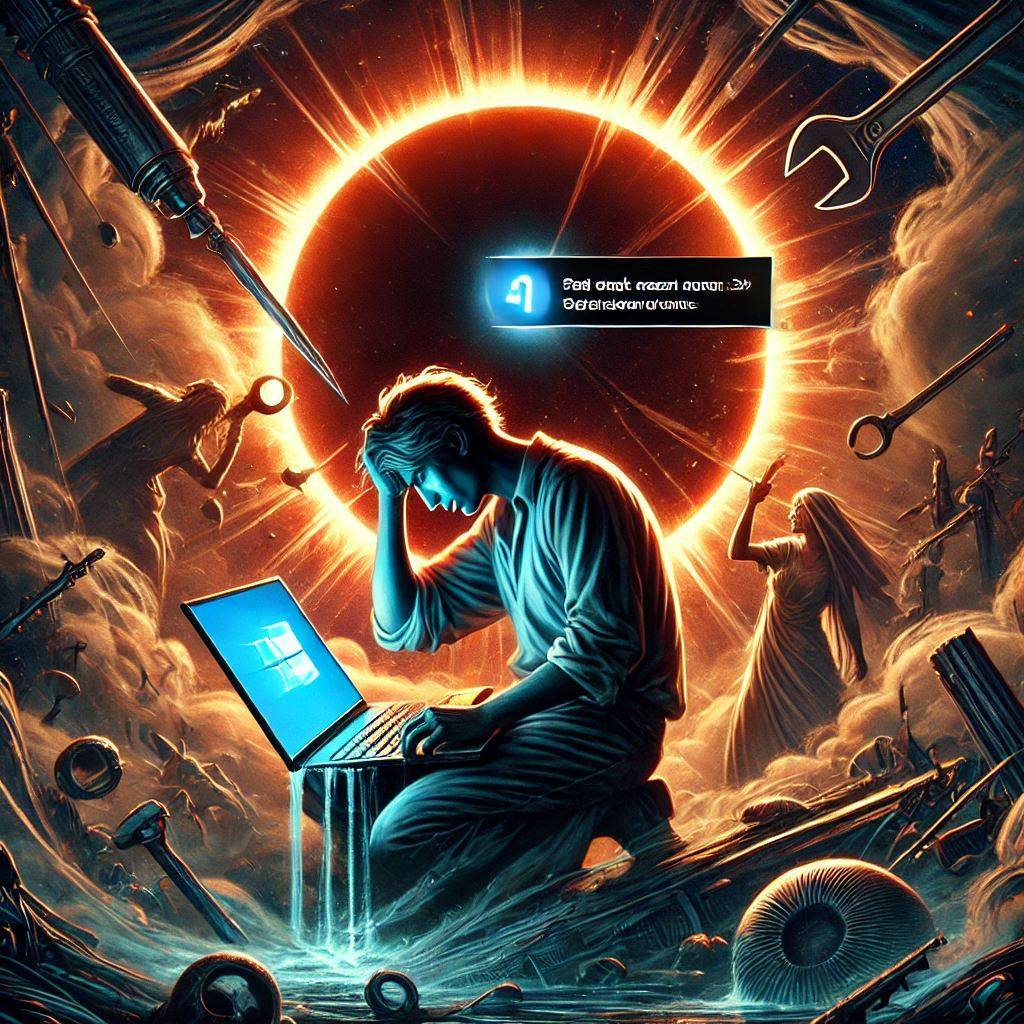
Fix Black Screen Issues in Windows 11 Easily. A black screen on Windows 11 can disrupt your work and cause stress. It often signals display issues or system errors. This article will guide you step-by-step on how to fix a black screen in Windows 11. Each solution is simple, self-explanatory, and easy to follow.

Fix Black Screen Issues in Windows 11 Easily

What Causes a Black Screen on Windows 11?

Several factors can trigger a black screen:

  • Hardware issues like faulty cables or monitors.
  • Outdated or corrupt display drivers.
  • Incompatible updates or system files.
  • Loose connections in hardware components.
  • Boot errors or malware infections.

Identifying the cause is the first step to resolving the issue.


Step 1: Check Physical Connections

Sometimes, the problem lies outside the system.

  • Ensure the monitor cable is securely connected.
  • Test the monitor with another device to rule out damage.
  • Check the power supply to the monitor and PC.

Step 2: Restart Your Computer

A simple restart can fix many system errors.

  • Press and hold the power button for 10 seconds.
  • Wait for a few seconds, then turn the PC back on.

If the black screen persists, move to the next step.


Step 3: Disconnect External Devices

External devices can sometimes interfere with the display.

  • Disconnect USB devices like printers, external drives, or webcams.
  • Restart the computer.
  • Reconnect devices one by one to identify the problematic hardware.

Step 4: Boot Into Safe Mode

Safe Mode disables non-essential drivers and services.

  1. Force restart the PC three times to trigger the recovery menu.
  2. Select Advanced Options > Startup Settings > Restart.
  3. Choose Enable Safe Mode with Networking.

In Safe Mode, you can troubleshoot software-related issues.


Step 5: Update Display Drivers

Outdated drivers often cause black screen problems.

  1. Press Windows + X and select Device Manager.
  2. Expand the Display Adapters section.
  3. Right-click the driver and select Update Driver.
  4. Choose Search Automatically for Drivers.

Restart your PC after updating the drivers.


Step 6: Roll Back Recent Updates

Incompatible updates can cause system errors.

  1. Boot into Safe Mode (refer to Step 4).
  2. Go to Settings > Windows Update.
  3. Select Update History > Uninstall Updates.
  4. Remove the most recent update.

Monitor if the black screen issue resolves.


Step 7: Check for Corrupt System Files

Use the System File Checker (SFC) tool to repair corrupted files.

  1. Open Command Prompt as an administrator.
  2. Type sfc /scannow and press Enter.
  3. Wait for the scan to complete.

Restart your PC after the scan to apply fixes.


Step 8: Adjust Projection Settings

Incorrect display settings can cause a black screen.

  1. Press Windows + P to open the projection menu.
  2. Use the arrow keys to select PC Screen Only or Extend.
  3. Press Enter to confirm.

Step 9: Perform a System Restore

A system restore can revert your PC to a working state.

  1. Boot into Safe Mode (refer to Step 4).
  2. Go to Control Panel > Recovery.
  3. Select Open System Restore.
  4. Choose a restore point before the black screen issue.

Follow the prompts to complete the process.


Step 10: Reset Windows 11

If none of the above solutions work, consider resetting Windows 11.

  1. Boot into recovery mode.
  2. Select Troubleshoot > Reset this PC.
  3. Choose between Keep My Files or Remove Everything.

This will reinstall Windows while fixing software-related issues.


Also Read – LG Launches World First Transparent OLED TV Luxury at Its Finest

Tips to Prevent Black Screen Issues

  1. Keep Drivers Updated: Regularly update your display drivers.
  2. Avoid Suspicious Software: Install trusted applications only.
  3. Run Regular Scans: Use antivirus software to detect malware.
  4. Maintain Hardware: Ensure your cables and monitor are in good condition.
  5. Create Restore Points: These help you roll back to a working state quickly.

Conclusion

A black screen on Windows 11 can feel frustrating, but it’s fixable. Follow these steps to identify and resolve the problem effectively. By keeping your system updated and monitoring hardware, you can prevent such issues in the future.

Act now to fix your black screen issue and get back to work hassle-free!
Share this:

  • Email a link to a friend (Opens in new window) Email
  • Share on Facebook (Opens in new window) Facebook
  • Share on Tumblr (Opens in new window) Tumblr
  • Print (Opens in new window) Print
  • Share on LinkedIn (Opens in new window) LinkedIn
  • Share on Reddit (Opens in new window) Reddit
  • Share on X (Opens in new window) X
  • Share on WhatsApp (Opens in new window) WhatsApp
  • Share on Pinterest (Opens in new window) Pinterest

Like this:

Like Loading…

Related

Windows
Tagged Computer screen went black but still running, How to fix PC when screen is black?, How to solve black screen problem in Windows 11?, How to stop screen from going black in Windows 11?, My computer turns on but the screen is black Windows 10, My computer turns on but the screen is black Windows 11, Why is my laptop screen black when I turn it on, Windows 11 black screen with cursor after login, Windows 11 screen goes black after 1 minute, Windows 11 screen goes black for a few seconds, Windows black screen with cursor after login

Post navigation

⟵ Start an Online Business with Zero Investment
Happy New Year 2025 Best Wishes, Quotes, and Messages for Your Loved Ones ⟶

Related Posts

Google Drive Free Cloud Storage Best Way to Use It Effectively

Google Drive Free Cloud Storage Best Way to Use It Effectively Running out of storage on your phone or computer?…

Share this:

  • Email a link to a friend (Opens in new window) Email
  • Share on Facebook (Opens in new window) Facebook
  • Share on Tumblr (Opens in new window) Tumblr
  • Print (Opens in new window) Print
  • Share on LinkedIn (Opens in new window) LinkedIn
  • Share on Reddit (Opens in new window) Reddit
  • Share on X (Opens in new window) X
  • Share on WhatsApp (Opens in new window) WhatsApp
  • Share on Pinterest (Opens in new window) Pinterest

Like this:

Like Loading…
Opening a Port in the Windows Firewall
Step-by-Step Guide to Opening a Port in the Windows Firewall

Mastering the art of opening a port in the Windows firewall is a valuable skill for anyone managing network connectivity…

Share this:

  • Email a link to a friend (Opens in new window) Email
  • Share on Facebook (Opens in new window) Facebook
  • Share on Tumblr (Opens in new window) Tumblr
  • Print (Opens in new window) Print
  • Share on LinkedIn (Opens in new window) LinkedIn
  • Share on Reddit (Opens in new window) Reddit
  • Share on X (Opens in new window) X
  • Share on WhatsApp (Opens in new window) WhatsApp
  • Share on Pinterest (Opens in new window) Pinterest

Like this:

Like Loading…
windows trick
Tricks to Create USB/Pendrive Bootable Windows

Are you unable to install operating system in your system Just because your CD/DVD drives is not working or because…

Share this:

  • Email a link to a friend (Opens in new window) Email
  • Share on Facebook (Opens in new window) Facebook
  • Share on Tumblr (Opens in new window) Tumblr
  • Print (Opens in new window) Print
  • Share on LinkedIn (Opens in new window) LinkedIn
  • Share on Reddit (Opens in new window) Reddit
  • Share on X (Opens in new window) X
  • Share on WhatsApp (Opens in new window) WhatsApp
  • Share on Pinterest (Opens in new window) Pinterest

Like this:

Like Loading…

Some Additional Links

  • Home
  • Editorial team information
  • Corrections Policy
  • Ethics Policy
  • Fact checking Policy
  • About us
  • Submit your trick
  • Contact us
  • Terms and Conditions
  • Visitor Post
  • Privacy Policy

Popular Posts

  • 4ef07f4f7482b627b96023d824b4bdd0
    How Notifications Changed Human Attention Forever
  • fae5cb696c32b7960b43e90d57e3d919
    Why Your Computer Gets Slower Over Time
  • mock up background technology product desain branding template 1384939 1350
    Best Bluetooth Speakers Under ₹3,000 Worth Buying in 2026
  • d427f96c71cbb88e4baa20e83b5c2c5a
    What Happens When You Type a Website Address Into Your Browser
  • low battery phone d render 120871 1102
    Why Your Smartphone Battery Doesn’t Last as Long as It Used To
  • 4a140b5c2d311f593b2a86933d2adedf
    Why AI Needs So Much Data to Learn New Things
  • blockchainverified ad campaign impact report 1029473 152671
    Why Do Some Websites Look Trustworthy While Others Feel Suspicious
  • top view scandinavian teenage male lying floor with many electronic devices generative ai aig30 31965 197340
    The Hidden Technology You Use Every Day Without Realizing It
  • destruction smartphone scene 23 2151500062
    Will Smartphones Ever Become Obsolete?
Follow Us
  • Facebook
  • Twitter
  • Instagram
  • YouTube
  • LinkedIn
  • Pinterest
  • Quora
Quick Links
  • Home
  • Editorial team information
  • Corrections Policy
  • Ethics Policy
  • Fact checking Policy
  • About us
  • Submit your trick
  • Contact us
  • Terms and Conditions
  • Visitor Post
  • Privacy Policy
Copyright © 2026 Need Tricks | Extensive News by Ascendoor | Powered by WordPress.
%d